Tech Me More

To quench our thirst of sharing knowledge about our day to day experience & solution to techincal problems we face in our projects.

Advertise with us !
Send us an email at diehardtechy@gmail.com
Showing posts with label testing. Show all posts

Saturday, September 3, 2016

How to get Test Case Detail from testlink using TestLink Java API?

Getting test case detail from testlink using API is quite needful when displaying results in Reports.

To get test case related detail you will need testlink-java-api.

Prerequisite:


  1. TestLink-Java-API
  2. Java 1.7 or higher
  3. Maven

Since, TestLink-Java-API depends on mulitple other jars, it ia adviceable to create a Maven project and add the below dependencies in POM.XML


<dependencies>
  <!-- Commons APIs -->
  <dependency>
   <groupId>commons-lang</groupId>
   <artifactId>commons-lang</artifactId>
   <version>2.6</version>
   <type>jar</type>
   <scope>compile</scope>
  </dependency>
  <dependency>
   <groupId>commons-io</groupId>
   <artifactId>commons-io</artifactId>
   <version>2.4</version>
   <type>jar</type>
   <scope>compile</scope>
  </dependency>
  <!-- Logging APIs -->
  <dependency>
   <groupId>org.slf4j</groupId>
   <artifactId>slf4j-simple</artifactId>
   <version>1.7.21</version>
  </dependency>
  <!-- Configuration APIs -->
  <dependency>
   <groupId>commons-configuration</groupId>
   <artifactId>commons-configuration</artifactId>
   <version>1.10</version>
  </dependency>
  <!-- XML-RPC related APIs -->
  <dependency>
   <groupId>org.apache.xmlrpc</groupId>
   <artifactId>xmlrpc-common</artifactId>
   <version>3.1.3</version>
   <type>jar</type>
   <scope>compile</scope>
  </dependency>
  <dependency>
   <groupId>xml-apis</groupId>
   <artifactId>xml-apis</artifactId>
   <version>2.0.2</version>
   <type>jar</type>
   <scope>compile</scope>
  </dependency>
  <dependency>
   <groupId>commons-httpclient</groupId>
   <artifactId>commons-httpclient</artifactId>
   <version>3.1</version>
   <type>jar</type>
   <scope>compile</scope>
  </dependency>
  <dependency>
   <groupId>br.eti.kinoshita</groupId>
   <artifactId>testlink-java-api</artifactId>
   <version>1.9.14-0</version>
  </dependency>
<dependencies>


Use the below code to retrieve Test case description, Steps to execute, Expected results etc. using External test case id.


public void getTestDetailFromTestLink() {
  String testCaseDescription = "", expectedResults = "", steps = "";
  URL url;
  try {
   url = new URL("http://localhost/testlink/lib/api/xmlrpc/v1/xmlrpc.php");

   String devKey = "5062c3fertf9b8886e0edd0ffdf6b14";
   TestLinkAPI api = new TestLinkAPI(url, devKey);
   TestCase tCase = api.getTestCaseByExternalId("P1-46039", 1);

   testCaseDescription = tCase.getSummary();

   List<TestCaseStep> list = tCase.getSteps();
   Iterator<TestCaseStep> itr = list.iterator();
   while (itr.hasNext()) {
    TestCaseStep tcs = itr.next();
    expectedResults = tcs.getExpectedResults();
    steps = tcs.getActions();

   }
  } catch (Exception e) {
   e.printStackTrace();
  }

  System.out.println("Description :"+testCaseDescription);
  System.out.println("Expected Result :"expectedResults);
  System.out.println("Steps to Execute :"+steps);
  
 }


Above code produces the below output.

Description :Verify that on selecting Die Hard Techy from Side menu takes user to blog screen.

Expected Result :User should be navigated to Screen.

Steps to Execute :1.Open DieHardTechy website. 2.Select Die Hard Techy.

Friday, December 4, 2015

How to solve Failed to connect to server. Appium inspector Error

If you are unable to launch Appium inbuilt inspector and getting the error like failed to connect to server. Please chech that it is running. Even when your appium server is up and running. 

Please do the following changes in your appium Server.

1. Stop your appium Server.

2. Click Android Icon in appium and select application path.

3. click the choose button to locate you .apk file.


4. Click the settings icon and check the pre-launch application check box.


5. Restart your server.
6. Click on the inspector icon and click refresh.

7. It should be displayed. 


Appium element inspector is quite basic , we recommend to use Android's default UIAutomator viewer.

How to get rid of irritating SocketExceptions in TestNG?

While running your TestNG classes you may encounter some Exception like

java.net.SocketException: Software caused connection abort: socket write error

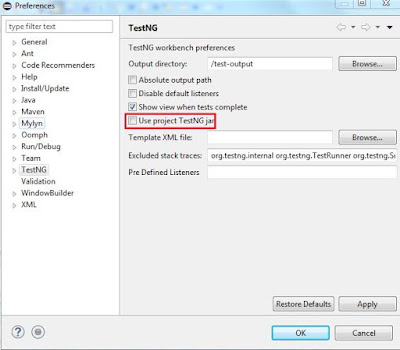
to avoid the SocketException in Eclipse please do the following changes.


  • Go to Windows from Menu Bar in Eclipse.
  • Select Preferences.
  • It will open a new window.
  • Choose TestNg and uncheck Use Project TestNG Jar.
  • Click apply and click OK.


Friday, February 27, 2015

[Webdriver] Selenium test script to scroll and print all items name from a web page.

Write a selenium web driver test script to scroll and print all items name from a web page. Below is an example using FlipKart.

Scenario

  • Log in to Flipkart.

  • Type Samsung in search box and Click search button.

  • Click mobile link.
  • Scroll and print all the names.


Scrolling is the only challenging portion here, until when we have to scroll is the question. In the above scenario we will scroll the web page until no-more-results are displayed.


package chubJava;

import java.util.List;

import org.openqa.selenium.By;
import org.openqa.selenium.JavascriptExecutor;
import org.openqa.selenium.WebDriver;
import org.openqa.selenium.WebElement;
import org.openqa.selenium.firefox.FirefoxDriver;

public class FKart_Test {
 
 static WebDriver driver=new FirefoxDriver();
 
 public static void main(String[] args) {
  driver = new FirefoxDriver();
  driver.get("http://www.flipkart.com");
  driver.findElement(By.id("fk-top-search-box")).sendKeys("Nokia");
  driver.findElement(By.xpath("//form[@id='fk-header-search-form']/div/div/div[2]/input[1]")).click();
  driver.findElement(By.partialLinkText("Mobiles")).click();
  JavascriptExecutor jse = (JavascriptExecutor) driver;
  int count = 1500;
  while (!driver.findElement(By.id("no-more-results")).isDisplayed()) {
   count = count + 500;
   jse.executeScript("scroll(0, " + count + ")");
   try {
    Thread.sleep(500);
   } catch (InterruptedException e) {
    // TODO Auto-generated catch block
    e.printStackTrace();
   }
   if (driver.findElement(By.id("show-more-results")).isDisplayed()) {
    driver.findElement(By.id("show-more-results")).click();
   }
  }

  List<WebElement> al = driver.findElements(By.xpath("//div[contains(@class,'pu-title')]/a"));

  System.out.println(al.size());

  for (int i = 0; i < al.size(); i++) {
   System.out.println(al.get(i).getText());
  }
  
  driver.close();
 }

}

Ping us for any help. Like us at Facebook.

Tuesday, September 2, 2014

What is Selenium and advantages of Selenium

What is Selenium ?


As per the definition from http://www.seleniumhq.org/

Selenium automates browsers. That's it! What you do with that power is entirely up to you. Primarily, it is for automating web applications for testing purposes, but is certainly not limited to just that. Boring web-based administration tasks can (and should!) also be automated as well.
Selenium has the support of some of the largest browser vendors who have taken (or are taking) steps to make Selenium a native part of their browser. It is also the core technology in countless other browser automation tools, APIs and frameworks.

Advantages of Selenium

  •  Best available  open source  tool for web browser automation.

  • Simple and powerful document object model (DOM) level testing, can be used for continuous integration with agile projects.

  • Selenium has great extensible and flexibility, along with its tight integration with the browser unmatched by available proprietary tools.

  • Supports multiple browsers such as Internet Explorer, Fire fox, Safari or Opera on Windows, Mac OS X and Linux.

  • Supports Object Oriented Programming languages like JAVA, .NET, Ruby, Perl, PHP, etc.