Tech Me More

To quench our thirst of sharing knowledge about our day to day experience & solution to techincal problems we face in our projects.

Advertise with us !
Send us an email at diehardtechy@gmail.com
Showing posts with label selenium. Show all posts

Wednesday, May 8, 2019

RUNNING SELENIUM TEST IN DOCKER CONTAINER USING JENKINS WITH ZALENIUM & GRADLE.


RUNNING SELENIUM TEST IN DOCKER CONTAINER USING JENKINS WITH ZALENIUM & GRADLE.

Step 1:
Pull Jenkins image and run it.
Use the below command to pull and run the Jenkins docker instance.
docker run -p 8085:8080 jenkins/jenkins:lts
once the above command is executed, you will see the below output.


As you can see from the above output “Jenkins is up and running.”
Navigate to http://localhost:8085 to access the Jenkins.
Install Git & Gradle plugin.
Step 2:
Pull Zalenium docker image and run it.
 # Pull docker-selenium
docker pull elgalu/selenium

# Pull Zalenium
 docker pull dosel/zalenium

 # Run it!
  docker run --rm -ti --name zalenium -p 4444:4444 \
      -v /var/run/docker.sock:/var/run/docker.sock \
      -v /tmp/videos:/home/seluser/videos \
      --privileged dosel/zalenium start


After the above command is executed, you can see the output as below.


From the above-highlighted content, you can see, selenium grid is up and running. Please use http://localhost:4444/wd/hub to connect to selenium hub.

Visit: http://localhost:4444/dashboard/# this will open Zalenium dashboard. Zalenium dashboard is a unique dashboard for all test execution status and report.


Visit: http://localhost:4444/grid/admin/live to see the live execution happening in docker container created by Zalenium.


Step 3:
Point your Selenium test to http://localhost:4444/wd/hub and run it.
If you wish to run this in Jenkins please use ip address of your host machine.
I have created a sample Java-Gradle project and kept it in bitbucket.
Step 4:
Create a Jenkins job, which have bitbucket configuration for above repo. And try running it. Sample configuration from Jenkins looks like below:


Monday, February 11, 2019

How to return all the values of a column in a web table. Selenium and xpath

Fellow automation developers, Many times during web automation we come across scenarios where we want to retrieve all the values of a column based upon the column name of a dynamic web table.

Consider in the below image, you want to get all company names. 


Or you want to get all the Contact names. 

Below are the XPath and selenium-java method to find and return all name of the company column. 


/**
  * @author diehardtechy
  * @param columnName
  *            : Column name whose all
  *            <td>values needs to be returned.
  * @return List<String> 
  */
 public List<String> getColumnValues(String columnName, String textToSearch) {

  String xpath = "//table[@id='customers']/tbody/tr/td[count(//table/tbody/tr/th[.=\"" + columnName
    + "\"]/preceding-sibling::th)+1]";

  List<WebElement> elements = d.findElements(By.xpath(xpath));
  return elements.stream().map(t->t.getText()).collect(Collectors.toList());
  
 }


Wednesday, January 3, 2018

What is the best way to check element not present in webpage using selenium webdriver ?


Best Way of checking element not present in webpage using selenium webdriver ?


Often encountered a situation where you have to verify an element is not present in the web page. 

using 


try {

        driver.findElement(locatorKey);

        Assert.assertTrue(false);

    } catch (org.openqa.selenium.NoSuchElementException e) {

        Assert.assertTrue(true);

    }


is not a right approach. Because this is layman way of asserting absence of web element.

As per selenium documantaion, best way to check if element is not present is using findElements and then asseting on the size of the list returned. 

findElements does not throw any exception in case if an element is not present. Asserting on 0 length is more appropriate for absence of an element. 

Selenium official comment : 


Monday, August 29, 2016

How to drag and drop an element to location specified by X, Y coordinate using selenium

Drag and drop is now common functionality across many web applications for interactive user interface and easy upload. 

To automate drag and drop in your automation test script, selenium provides a class called Actions for interactive actions.

Scenario:
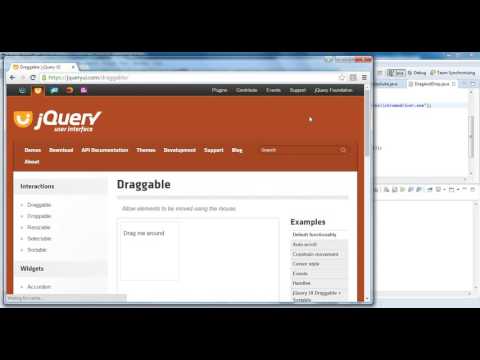
1. Launch https://jqueryui.com/draggable/
2. Drag and release the element an X=250 and Y= 10 Pixels.


To automate the above scenario using Selenium Webdriver , we would need to use dragAndHold(WebElement element) function of selenium library.

Code:


package seleniumInteractive;

import org.openqa.selenium.By;
import org.openqa.selenium.WebDriver;
import org.openqa.selenium.WebElement;
import org.openqa.selenium.chrome.ChromeDriver;
import org.openqa.selenium.interactions.Actions;

public class DragAndDrop {

	static {
		System.setProperty("webdriver.chrome.driver", "Chrome driver location");
	}

	public static void main(String[] args) {

		WebDriver driver = new ChromeDriver();
		driver.get("https://jqueryui.com/draggable/");
		driver.switchTo().frame(driver.findElement(By.xpath("//iframe[@class='demo-frame']")));
		WebElement element = driver.findElement(By.id("draggable"));
		Actions action = new Actions(driver);
		action.clickAndHold(element).moveByOffset(250, 10).build().perform();
	}

}

POC videos:


Please follow our other blog Tester in you for more updates and tutorials of Selenium.

Friday, February 27, 2015

[Webdriver] Selenium test script to scroll and print all items name from a web page.

Write a selenium web driver test script to scroll and print all items name from a web page. Below is an example using FlipKart.

Scenario

  • Log in to Flipkart.

  • Type Samsung in search box and Click search button.

  • Click mobile link.
  • Scroll and print all the names.


Scrolling is the only challenging portion here, until when we have to scroll is the question. In the above scenario we will scroll the web page until no-more-results are displayed.


package chubJava;

import java.util.List;

import org.openqa.selenium.By;
import org.openqa.selenium.JavascriptExecutor;
import org.openqa.selenium.WebDriver;
import org.openqa.selenium.WebElement;
import org.openqa.selenium.firefox.FirefoxDriver;

public class FKart_Test {
 
 static WebDriver driver=new FirefoxDriver();
 
 public static void main(String[] args) {
  driver = new FirefoxDriver();
  driver.get("http://www.flipkart.com");
  driver.findElement(By.id("fk-top-search-box")).sendKeys("Nokia");
  driver.findElement(By.xpath("//form[@id='fk-header-search-form']/div/div/div[2]/input[1]")).click();
  driver.findElement(By.partialLinkText("Mobiles")).click();
  JavascriptExecutor jse = (JavascriptExecutor) driver;
  int count = 1500;
  while (!driver.findElement(By.id("no-more-results")).isDisplayed()) {
   count = count + 500;
   jse.executeScript("scroll(0, " + count + ")");
   try {
    Thread.sleep(500);
   } catch (InterruptedException e) {
    // TODO Auto-generated catch block
    e.printStackTrace();
   }
   if (driver.findElement(By.id("show-more-results")).isDisplayed()) {
    driver.findElement(By.id("show-more-results")).click();
   }
  }

  List<WebElement> al = driver.findElements(By.xpath("//div[contains(@class,'pu-title')]/a"));

  System.out.println(al.size());

  for (int i = 0; i < al.size(); i++) {
   System.out.println(al.get(i).getText());
  }
  
  driver.close();
 }

}

Ping us for any help. Like us at Facebook.